
Stream AI Answers Into Froala Through Your Own Server
You have probably used an AI chat app where the answer types itself out one word at a time. It feels quick and alive. Now compare that to an app where you ask a question, stare at a spinner for nine seconds, and then the whole answer drops in at once. Same answer, same speed, completely different feeling.
Froala’s AI Chat panel has supported typing-out functionality since v5.4.0. This tutorial focuses on building a production-ready version that streams answers word by word, secures your API key on your server, and includes a Cancel button that genuinely cancels all the way back to the provider.
What we are building
Three pieces talking to each other:
   Browser                    Your Node server              AI provider
  (Froala AI Chat)                (the proxy)                  (Groq)
        │                              │                          │
        │  POST /ai/stream             │                          │
        ├─────────────────────────────►│  POST /chat/completions  │
        │                              ├─────────────────────────►│
        │                              │            🔑 key added   │
        │   data: {"delta":"Hello"}    │   data: {...}            │
        │◄─────────────────────────────┤◄─────────────────────────┤
        │   data: {"delta":" there"}   │   data: {...}            │
        │◄─────────────────────────────┤◄─────────────────────────┤
        │   data: {"done":true}        │                          │
        │◄─────────────────────────────┤                          │
By the end you will have:
- A working
server.jsthat streams and keeps your key safe - A working
index.htmlwith a real Froala editor in it - A Cancel button that stops the AI provider, not just the display
- Timeouts that behave sensibly, including behind a reverse proxy like nginx
- A practice mode so you can test all of this without an API key at all
This tutorial uses Groq because it is fast, free to start, and its API is OpenAI-compatible, meaning the exact same code works for OpenAI by changing one URL. There is a section near the end on swapping to Gemini or Claude.
Step 1: Set up the project
Open your terminal and run these four commands one at a time:
mkdir froala-ai-streaming

cd froala-ai-streaming

npm init -y

npm install express cors
What each one does:
mkdirmakes a new folder,cdmoves you into it. Everything from here happens inside this folder.npm init -ycreates apackage.jsonfile. Think of it as the project’s ID card: it records which packages your project uses. The-yjust says “yes” to all the setup questions so you are not prompted.npm install express corsdownloads two small packages:- express is a tiny web server. It handles the boring parts of listening for requests so you can write the interesting parts.
- cors grants your web page permission to talk to your server. Browsers block cross-origin requests by default as a security measure, and
corsis how you say “this one is fine.”
Versions used when writing this: express 5.2.1, cors 2.8.6, Node 22. The code also works on Node 18+ and express 4.
Step 2: Understand the format before writing any code
One concept first, because everything after it becomes obvious once you have this.
When an AI provider streams an answer, it does not send you a JSON object. It sends a long response that dribbles in over time, made of lines that look like this:
data: {"choices":[{"delta":{"content":"Hello"}}]}

data: {"choices":[{"delta":{"content":" there"}}]}

data: [DONE]
This is called Server-Sent Events, or SSE. Two things define it:
- Every message starts with data: and ends with a blank line. The blank line is the “message over” marker, and it is not optional.
- The connection stays open the whole time. Normal HTTP is a question and an answer. SSE is more like a one-way radio broadcast: the server keeps talking, and the listener keeps listening until the server signs off.
Our server is going to do two SSE jobs at once:
- Read the provider’s SSE stream as it arrives
- Write its own, much simpler SSE stream out to the browser
Why translate instead of just forwarding?
You might reasonably ask why we do not just pipe the provider’s messages straight through. The answer is that it would leak the provider’s shape into your frontend. Your browser code would have to know that Groq puts text at choices[0].delta.content. The day you switch to Gemini, where it lives at candidates[0].content.parts[0].text, you would have to change your frontend too, redeploy it, and re-test it.
By translating on the server, the browser only ever sees your format. Switching providers becomes a change to one file that your frontend never notices.
Our format has exactly three kinds of message:
data: {"delta":"Hello"}                     ← a piece of the answer
data: {"done":true,"webSearchUsed":false}   ← the answer is finished
data: {"error":"AI request failed"}         ← something went wrong
Simple enough to hold in your head. That is the point.
Step 3: Build the server, piece by piece
I am going to show you the server in four chunks so you can see what each part is for, then give you the complete file to copy.
3.1 The setup and the SSE headers
const express = require('express');
const cors = require('cors');
const path = require('path');

const app = express();

app.use(cors());                                 // let a browser page call this server
app.use(express.json({ limit: '25mb' }));        // parse JSON bodies; file context can be large
app.use(express.static(path.join(__dirname)));   // also serve index.html from this same folder

app.post('/ai/stream', async (req, res) => {
  // Tell the browser: this is a stream, not a normal one-and-done response
  res.setHeader('Content-Type', 'text/event-stream');
  res.setHeader('Cache-Control', 'no-cache, no-transform');
  res.setHeader('Connection', 'keep-alive');
  res.setHeader('X-Accel-Buffering', 'no');
  res.flushHeaders();
Why these headers matter:
- The
text/event-streamis the official SSE content type, informing browsers and proxies that the response will be delivered in fragments. no-transformasks intermediaries not to “helpfully” rewrite or compress the body. Compression is the enemy of streaming, because compressors like to buffer.X-Accel-Buffering: nois a specific instruction to nginx meaning “do not hold this back.” We will come back to this in the timeouts section, because it is the single most common reason streaming works locally and then breaks in production.res.flushHeaders()sends the headers immediately rather than waiting for the first chunk of body. This is what makes the connection open right away.
Notice express.static too. It serves index.html from the same folder, so your page and your API live at the same address. That sidesteps a whole category of beginner CORS pain, and it also matches how you would deploy for real.
3.2 The abort chain (the part that saves you money)
  const send = (payload) => {
    if (!res.writableEnded) res.write(`data: ${JSON.stringify(payload)}\n\n`);
  };

  const upstream = new AbortController();
  let finished = false;

  res.on('close', () => {
    if (!finished) {
      console.log('Client hung up — cancelling the provider request.');
      upstream.abort();
    }
  });
An AbortController is a remote stop button for an in-flight request. You create one, hand its .signal to fetch, and later calling .abort() cancels that fetch wherever it has got to.
res.on('close') fires when the browser hangs up. That happens when the user clicks Cancel in the chat panel, closes the tab, or their wifi drops. Without this listener, your server would happily keep receiving an answer nobody will ever read, and your provider would keep billing you for every token of it.
The finished flag exists because close also fires after a completely normal, successful ending. Without the flag you would fire a pointless abort every single time.
The send helper does two jobs: it formats valid SSE (note the two \n characters, which create that mandatory blank line), and it checks writableEnded so you never try to write to a connection that is already gone.
3.3 The heartbeat and the idle watchdog
  const IDLE_TIMEOUT_MS = 30000;
  const HEARTBEAT_MS = 15000;

  // Send a tiny "still here" comment so idle-timeout proxies don't kill us
  const heartbeat = setInterval(() => {
    if (!res.writableEnded) res.write(': keep-alive\n\n');
  }, HEARTBEAT_MS);

  // A kitchen timer we reset every time we hear from the provider
  let idleTimer = null;
  let timedOut = false;
  const touch = () => {
    clearTimeout(idleTimer);
    idleTimer = setTimeout(() => {
      timedOut = true;
      upstream.abort();
    }, IDLE_TIMEOUT_MS);
  };

  const cleanup = () => {
    clearInterval(heartbeat);
    clearTimeout(idleTimer);
  };
Two different problems, two different tools.
The heartbeat mechanism addresses connection timeouts that occur when infrastructure (e.g., nginx, load balancers, Cloudflare) terminates quiet connections. Models sometimes think for 10–20 seconds before producing a single token. To a load balancer, thinking looks identical to being dead. So every 15 seconds we write : keep-alive. A line starting with : is an SSE comment. This comment counts as traffic, and is ignored by the browser because it does not start with data:.
The idle watchdog solves the opposite problem: the provider accepts your request and then goes silent forever. Node’s built-in fetch has no default timeout, so without this your server would wait indefinitely, holding a connection open for nothing. So we set a 30-second kitchen timer, and every time a chunk arrives we reset it. The timer only fires if the provider genuinely goes quiet.
Note it is an idle timeout, not a total one. A three-minute answer is fine as long as something arrives every 30 seconds. A total timeout would cut off long answers for no good reason.
cleanup() clears both timers. Forgetting this is a real memory leak: an interval that keeps running after the request is gone.
3.4 Talking to the provider and parsing its stream
  const providerResponse = await fetch(PROVIDER_URL, {
    method: 'POST',
    headers: {
      'Content-Type': 'application/json',
      'Authorization': `Bearer ${API_KEY}`
    },
    body: JSON.stringify({
      model: req.body.model || DEFAULT_MODEL,
      messages: [{ role: 'user', content: req.body.prompt }],
      stream: true                       // ← the flag that turns streaming on
    }),
    signal: upstream.signal              // ← our stop button, wired in
  });

  const reader = providerResponse.body.getReader();
  const decoder = new TextDecoder('utf-8');
  let buffer = '';
  let done = false;

  while (!done) {
    const result = await reader.read();
    done = result.done;
    touch();                             // ← we heard something; reset the kitchen timer

    buffer += decoder.decode(result.value || new Uint8Array(), { stream: !done });

    const lines = buffer.split('\n');
    buffer = lines.pop();                // ⚠️ the last line may be cut in half — keep it

    for (const line of lines) {
      const trimmed = line.trim();
      if (!trimmed.startsWith('data:') || trimmed === 'data: [DONE]') continue;

      let parsed;
      try { parsed = JSON.parse(trimmed.slice(5)); } catch { continue; }

      const delta = parsed.choices?.[0]?.delta?.content;
      if (delta) send({ delta });        // forward this piece to the browser right now
    }
  }
This buffer = lines.pop() line deserves a moment, because it is where almost every first attempt breaks.
Data arrives in chunks of whatever size the network felt like, which has nothing to do with where the lines end. You will genuinely receive things like:
data: {"choices":[{"delta":{"content":"Hel…with the rest arriving 300 milliseconds later. Call JSON.parse on that and it throws.
So: split on newlines, process every complete line, and pop the last one back into buffer because you cannot be sure it finished. Next time round, the remainder gets glued onto it.
Analogy: it is like reading a book where a sentence runs across a page break. You do not try to make sense of the half-sentence at the bottom. You hold onto it until you turn the page.
getReader() is how you read a response body in pieces instead of waiting for all of it. TextDecoder turns raw bytes into text, and { stream: true } tells it “more bytes are coming, so if these end mid-character, hang on to the fragment.” Same idea as the line buffer, one level lower.
3.5 The complete server file
Create a file called server.js in your project folder and paste this in. This is the whole thing, including practice mode and the plain non-streaming route we will discuss in Step 4.
// server.js — a small proxy between Froala and your AI provider.

const express = require('express');
const cors = require('cors');
const path = require('path');

const app = express();

app.use(cors());                                // let a browser page call this server
app.use(express.json({ limit: '25mb' }));       // file context can make request bodies large
app.use(express.static(path.join(__dirname)));  // serve index.html from this same folder

// 🔑 Your key lives here, on the server. Never in the browser.
// Leave it unset to run in practice mode (fake answers, no key needed).
const API_KEY = process.env.GROQ_API_KEY || '';

const PROVIDER_URL = 'https://api.groq.com/openai/v1/chat/completions';
const DEFAULT_MODEL = 'llama-3.1-8b-instant';

const IDLE_TIMEOUT_MS = 30000;  // give up if the provider goes quiet this long
const HEARTBEAT_MS = 15000;     // how often to prove we're still alive

const PRACTICE_MODE = !API_KEY;

// A sleep that wakes up early if the request gets cancelled.
function sleep(ms, signal) {
  return new Promise((resolve, reject) => {
    const timer = setTimeout(resolve, ms);
    signal.addEventListener('abort', () => {
      clearTimeout(timer);
      const error = new Error('Aborted');
      error.name = 'AbortError';
      reject(error);
    }, { once: true });
  });
}

// Fake provider: emits one word at a time so you can test with no API key.
async function practiceStream(signal, onDelta) {
  const words = ('Practice mode is on, so this answer is coming from your own ' +
    'server instead of a real AI provider. Every word you are reading arrived ' +
    'as a separate little message. Try pressing Cancel while this is still ' +
    'typing and watch your terminal.').split(' ');

  for (const word of words) {
    await sleep(120, signal);   // rejects immediately if the user cancelled
    onDelta(word + ' ');
  }
}

// ─── The streaming route: used by the AI Chat panel ──────────────────────────
app.post('/ai/stream', async (req, res) => {
  // 1. Tell everyone in the chain this is a stream
  res.setHeader('Content-Type', 'text/event-stream');
  res.setHeader('Cache-Control', 'no-cache, no-transform');
  res.setHeader('Connection', 'keep-alive');
  res.setHeader('X-Accel-Buffering', 'no');   // stops nginx buffering the stream
  res.flushHeaders();                          // open the connection right now

  // Writes one valid SSE message. The blank line at the end is required.
  const send = (payload) => {
    if (!res.writableEnded) res.write(`data: ${JSON.stringify(payload)}\n\n`);
  };

  // 2. Our stop button for the request going out to the provider
  const upstream = new AbortController();
  let finished = false;
  let timedOut = false;

  // 3. Heartbeat: proves we're alive so proxies don't kill an idle connection
  const heartbeat = setInterval(() => {
    if (!res.writableEnded) res.write(': keep-alive\n\n');
  }, HEARTBEAT_MS);

  // 4. Idle watchdog: a kitchen timer we reset each time the provider speaks
  let idleTimer = null;
  const touch = () => {
    clearTimeout(idleTimer);
    idleTimer = setTimeout(() => {
      timedOut = true;
      upstream.abort();
    }, IDLE_TIMEOUT_MS);
  };

  const cleanup = () => {
    clearInterval(heartbeat);
    clearTimeout(idleTimer);
  };

  // 5. If the browser hangs up (Cancel, closed tab, dropped wifi), stop the provider
  res.on('close', () => {
    if (!finished) {
      console.log('Client hung up — cancelling the provider request.');
      upstream.abort();
    }
    cleanup();
  });

  touch();  // start the watchdog

  try {
    // ---- Practice mode: no key needed, fake words ----
    if (PRACTICE_MODE) {
      await practiceStream(upstream.signal, (delta) => {
        touch();
        send({ delta });
      });
      send({ done: true, webSearchUsed: false });
      finished = true;
      cleanup();
      return res.end();
    }

    // ---- Real mode: ask the provider for a streaming response ----
    const providerResponse = await fetch(PROVIDER_URL, {
      method: 'POST',
      headers: {
        'Content-Type': 'application/json',
        'Authorization': `Bearer ${API_KEY}`
      },
      body: JSON.stringify({
        model: req.body.model || DEFAULT_MODEL,
        messages: [{ role: 'user', content: req.body.prompt }],
        stream: true,   // ← the one flag that turns streaming on
        ...(req.body.webSearchEnabled ? { tools: [{ type: 'browser_search' }] } : {})
      }),
      signal: upstream.signal   // ← wire the stop button into the outgoing request
    });

    if (!providerResponse.ok) {
      const detail = await providerResponse.text();
      console.error('Provider error:', providerResponse.status, detail);
      send({ error: 'The AI provider rejected the request.' });
      finished = true;
      cleanup();
      return res.end();
    }

    // ---- Read the provider's stream piece by piece ----
    const reader = providerResponse.body.getReader();
    const decoder = new TextDecoder('utf-8');
    let buffer = '';
    let webSearchUsed = false;
    let done = false;

    while (!done) {
      const result = await reader.read();
      done = result.done;
      touch();   // we heard something — reset the watchdog

      // Bytes → text, glued onto whatever was left over last round
      buffer += decoder.decode(result.value || new Uint8Array(), { stream: !done });

      const lines = buffer.split('\n');
      buffer = lines.pop();   // ⚠️ last line may be cut in half — save it for next round

      for (const line of lines) {
        const trimmed = line.trim();
        if (!trimmed.startsWith('data:') || trimmed === 'data: [DONE]') continue;

        let parsed;
        try {
          parsed = JSON.parse(trimmed.slice(5));
        } catch {
          continue;   // a malformed line isn't worth killing the whole stream over
        }

        const choice = parsed.choices?.[0];

        // Did the model actually run a web search? Only it can tell us.
        const executedTools = choice?.delta?.executed_tools || choice?.message?.executed_tools;
        if (executedTools && executedTools.length) webSearchUsed = true;

        const delta = choice?.delta?.content;
        if (delta) send({ delta });   // forward this piece to the browser immediately
      }
    }

    // 6. Sign off, and report whether a search actually happened
    send({ done: true, webSearchUsed });
    finished = true;
    cleanup();
    res.end();

  } catch (error) {
    cleanup();

    if (timedOut) {
      console.error('Provider went quiet for too long — gave up.');
      send({ error: 'The AI provider stopped responding.' });
      finished = true;
      return res.end();
    }

    // The user cancelled. The connection is already gone; nothing to report.
    if (error.name === 'AbortError') return;

    console.error(error);
    send({ error: 'AI request failed.' });
    finished = true;
    res.end();
  }
});

// ─── The plain route: used by every other AI feature ─────────────────────────
app.post('/ai', async (req, res) => {
  try {
    if (PRACTICE_MODE) {
      return res.json({ answer: 'Practice mode: this is a fake non-streaming answer.' });
    }

    const providerResponse = await fetch(PROVIDER_URL, {
      method: 'POST',
      headers: {
        'Content-Type': 'application/json',
        'Authorization': `Bearer ${API_KEY}`
      },
      body: JSON.stringify({
        model: req.body.model || DEFAULT_MODEL,
        messages: [{ role: 'user', content: req.body.prompt }]
        // note: no `stream: true` here — we want the whole answer at once
      }),
      signal: AbortSignal.timeout(IDLE_TIMEOUT_MS)   // built-in one-line timeout
    });

    const data = await providerResponse.json();
    res.json({ answer: data.choices?.[0]?.message?.content || '' });
  } catch (error) {
    console.error(error);
    res.status(500).json({ error: 'AI request failed.' });
  }
});

app.listen(3000, () => {
  console.log('AI server running on http://localhost:3000');
  if (PRACTICE_MODE) {
    console.log('PRACTICE MODE: no GROQ_API_KEY found, serving fake answers.');
  }
});
Step 4: Why there are two routes
You may have noticed the second, much shorter route at the bottom. That is deliberate, and skipping it causes a confusing bug later.
The AI Chat panel streams. But the AI Assist plugin bundles several other features, and they all share the same aiAssistRequest connection:
| Feature | Streams? |
| AI Chat panel | Yes |
| AI Assist prompt popup | No |
| AI Shortcuts (tone, translate) | No |
| Improve Writing | No |
| Inline suggestions (ghost text) | No |
Froala tells you which kind it wants by whether it passes a third argument. One function handles both cases, so your server needs both routes to send it to. Build only the streaming one and Improve Writing will quietly fail.
Heads up about inline suggestions. They are on by default (
inlineSuggestions), and they fire a request every time the user pauses typing. That is a lot of small hits on your proxy. After the demo phase, consider routing these requests, identifiable by anautoCompletefield, to a more cost-effective, smaller model.
Step 5: Start the server (no API key required yet)
node server.js
You should see:
AI server running on http://localhost:3000
PRACTICE MODE: no GROQ_API_KEY found, serving fake answers.
Practice mode is on because you have not set a key yet, and that is exactly what we want right now. It emits fake words on a timer, one every 120ms. That is enough to prove the streaming plumbing, the Cancel button, and the abort chain all work, before you spend a single token or debug a single API error. Once everything works, you add the key and nothing else changes.
Step 6: Build the editor page
Create index.html in the same folder as server.js.
<!DOCTYPE html>
<html lang="en">
<head>
  <meta charset="utf-8">
  <title>Froala AI Chat — streaming through your own server</title>

  <!-- Froala's stylesheet -->
  <link href="https://cdn.jsdelivr.net/npm/froala-editor@latest/css/froala_editor.pkgd.min.css" rel="stylesheet">

  <style>
    body { font-family: system-ui, sans-serif; max-width: 1000px; margin: 40px auto; padding: 0 16px; }
  </style>
</head>
<body>

  <h1>Froala AI Chat (streaming proxy demo)</h1>

  <!-- Froala replaces this div with the editor -->
  <div id="editor">
    <p>Open the AI Chat panel and ask it something. The answer should type itself out.</p>
  </div>

  <!-- The "pkgd" bundle includes every plugin, AI Assist included -->
  <script src="https://cdn.jsdelivr.net/npm/froala-editor@latest/js/froala_editor.pkgd.min.js"></script>

  <script>
    // This one function is Froala's entire connection to your AI.
    // Froala calls it every time a user sends a message.
    async function aiHandler(request, signal, onChunk) {
      // Froala passes a 3rd argument ONLY when it wants a streaming answer.
      // If it's missing, it wants one complete answer instead.
      const wantsStreaming = typeof onChunk === 'function';

      const response = await fetch(wantsStreaming ? '/ai/stream' : '/ai', {
        method: 'POST',
        headers: { 'Content-Type': 'application/json' },
        body: JSON.stringify({
          prompt: request.prompt,                      // question + any attached context
          model: request.model,                        // only set if you configured aiChatModels
          webSearchEnabled: request.webSearchEnabled   // true if the globe toggle was on
        }),
        signal   // ← hands Froala's Cancel button control of this request
      });

      if (!response.ok) {
        throw new Error('The AI server returned ' + response.status);
      }

      // ---- The simple path: one answer, no streaming ----
      if (!wantsStreaming) {
        const data = await response.json();
        return data.answer;
      }

      // ---- The streaming path: read our server's SSE messages as they arrive ----
      const reader = response.body.getReader();
      const decoder = new TextDecoder('utf-8');
      let buffer = '';
      let answer = '';
      let webSearchUsed = false;
      let done = false;

      while (!done) {
        const result = await reader.read();
        done = result.done;

        buffer += decoder.decode(result.value || new Uint8Array(), { stream: !done });

        const lines = buffer.split('\n');
        buffer = lines.pop();   // same half-a-line problem as on the server

        for (const line of lines) {
          const trimmed = line.trim();
          // Skips our ": keep-alive" heartbeats automatically — they aren't "data:"
          if (!trimmed.startsWith('data:')) continue;

          let payload;
          try {
            payload = JSON.parse(trimmed.slice(5));
          } catch {
            continue;
          }

          if (payload.error) throw new Error(payload.error);

          if (payload.delta) {
            answer += payload.delta;   // keep our own copy of the full answer
            onChunk(payload.delta);    // 👈 this is what paints text into the panel
          }

          if (payload.done) webSearchUsed = !!payload.webSearchUsed;
        }
      }

      // Froala needs the complete answer back at the end, even when streaming.
      return { answer: answer.trim(), webSearchUsed };
    }

    new FroalaEditor('#editor', {
      // 1️⃣ REQUIRED. Without this, every AI feature stays off and no icons appear.
      aiSupplementalTermsAccepted: true,

      // 2️⃣ REQUIRED. Tells Froala how to reach an AI.
      aiAssistRequest: aiHandler,

      // Streaming is on by default. Flip to false to test the plain path.
      aiChatStreamResponse: true,

      // How long the browser waits before giving up. Default is 60000 (60s).
      aiChatRequestTimeoutMs: 120000,

      toolbarButtons: [
        'bold', 'italic', 'underline', '|',
        'aiChatAssistant',   // opens the AI Chat side panel
        'aiAssist',          // opens the one-off prompt popup
        'aiShortCuts'        // tone & translate dropdown
      ]
    });
  </script>
</body>
</html>
The two settings that matter most are aiSupplementalTermsAccepted and aiAssistRequest. The AI icons will not appear on the toolbar until both settings are configured.
Step 7: The three things worth understanding in that handler
Why we check for a third argument. Froala decides whether it wants a stream and tells you by passing onChunk. Your function does not choose; it responds. This is why one handler serves the chat panel, the prompt popup, and Improve Writing with no extra configuration.
Why we still return the full answer at the end. onChunk paints text on screen as it arrives, but Froala needs the finished answer for everything else: the Copy button, “Apply to document”, and getChatHistory(). So you accumulate pieces in answer as you go and hand the whole thing back at the end. Forgetting this produces a genuinely baffling bug: the text appears perfectly, then Apply inserts nothing.
Why not EventSource? If you have read about SSE before, you may know browsers have a built-in EventSource class for exactly this. We cannot use it: EventSource only makes GET requests and cannot send a request body. A prompt with document context attached can be many thousands of characters, so it has to go in a POST body. Reading the stream manually with getReader() is the standard workaround, and it is barely more code.
Understanding abort propagation
This is the part that separates a demo from something real, so let us trace it end to end.
When your user clicks Cancel, four things have to happen in order, and each one is a link in a chain:
1. User clicks Cancel in the chat panel
        ↓  Froala aborts the `signal` it gave your handler
2. Your browser fetch() is cancelled
        ↓  the TCP connection to your server closes
3. Your server's res.on('close') fires
        ↓  you call upstream.abort()
4. Your server's fetch to the provider is cancelled
        ↓  the provider stops generating (and stops charging you)
Break any link and the ones after it never happen.
There are exactly two places this chain usually breaks, and both are one-line mistakes:
Link 2 breaks if you forget to pass signal to fetch. This is the most common one. The panel stops showing text, because Froala stops listening, but your browser is still downloading and your server is still streaming. It looks fixed. Nothing was cancelled.
// ❌ Cancel does nothing beyond the UI
const response = await fetch('/ai/stream', { method: 'POST', body });

// ✅ Cancel propagates
const response = await fetch('/ai/stream', { method: 'POST', body, signal });
Link 4 breaks if you forget signal: upstream.signal on the server’s fetch. Then your server correctly notices the hangup but has no way to act on it, and the provider keeps generating a full answer into the void. You are billed for every token.
The timeout is the same thing wearing a different hat
Here is a detail that surprises people: when Froala’s aiChatRequestTimeoutMs expires, it aborts the same signal. From your handler’s point of view, a timeout and a user cancellation are identical events.
That is good news. It means you do not write separate timeout-handling code. If your abort chain works, timeouts clean up the whole chain for free.
Why the AbortError gets swallowed on purpose
Look at this line in the server’s catch block:
if (error.name === 'AbortError') return;
When the browser hangs up, the connection is already gone. Trying to write an error message to it would either throw or silently do nothing. And there is nobody left to read it. So we return quietly. This is the one case where swallowing an error is correct rather than lazy.
Understanding timeouts under a proxy
Locally, everything works. Then you deploy behind nginx or a load balancer and answers start cutting off at suspiciously round numbers like exactly 60 seconds. Here is why.
There are at least three timeout layers, and the shortest one always wins.
| # | Layer | Who controls it | Typical default |
| 1 | Browser → your server | You, via aiChatRequestTimeoutMs | 60000 (60s) |
| 2 | Anything in between (nginx, load balancer, CDN) | Your infrastructure | Often 60s idle |
| 3 | Your server → the provider | You, via the idle watchdog we built | None by default in Node |
Layer 3 is the one nobody remembers. Node’s built-in fetch has no timeout at all unless you give it one. That is why we added the idle watchdog, and why the plain /ai route uses AbortSignal.timeout().
Typical proxy defaults to check
These are the usual values. Do not trust the table; check your own config, because they change between versions and providers.
| Platform | Setting to look at | Commonly defaults to |
| nginx | proxy_read_timeout, proxy_buffering | 60s, buffering on |
| AWS Application Load Balancer | Idle timeout | 60s |
| Heroku | Router timeout | 55s |
| Cloudflare | Proxy read timeout | ~100s |
The two fixes
Fix 1: the heartbeat handles idle timeouts. Every one of those settings is an idle timeout: it kills the connection when nothing has moved for N seconds. Our : keep-alive comment every 15 seconds means the connection is never idle, even while the model is thinking. This is why the heartbeat exists.
Fix 2: turn off buffering, or you get no streaming at all. This one produces the most confusing symptom in the whole tutorial: your server streams perfectly, and the browser shows nothing until the very end. Nothing is broken. Something in the middle is collecting the whole response before passing it on, exactly as it would for a normal web page.
Three things buffer, and you need to defeat all of them:
# nginx: for your streaming route
location /ai/stream {
    proxy_pass http://localhost:3000;
    proxy_buffering off;          # don't collect the response before forwarding
    proxy_read_timeout 300s;      # allow long answers
    proxy_set_header Connection '';
    proxy_http_version 1.1;
}
The X-Accel-Buffering: no header we set in Step 3 does the same job and travels with the response, so it keeps working even if you do not control the nginx config. Belt and braces set both.
The third buffer is in your own code:
// ❌ Do NOT do this — compression buffers, and buffering defeats streaming
app.use(compression());
If you need compression() for the rest of your app, skip it for the streaming route:
app.use(compression({
  filter: (req, res) => res.getHeader('Content-Type') !== 'text/event-stream'
}));
Choosing your numbers
A sensible arrangement, from the inside out:
- Idle watchdog (server → provider): 30s. Long enough for a model to think, short enough to notice a dead provider.
- Proxy read timeout: 300s. Generous, because the heartbeat keeps the connection busy anyway.
aiChatRequestTimeoutMs: 120000. Double the default. Long answers with document context genuinely take a while.
Setting aiChatRequestTimeoutMs: 0 disables the browser timeout entirely.
Testing it
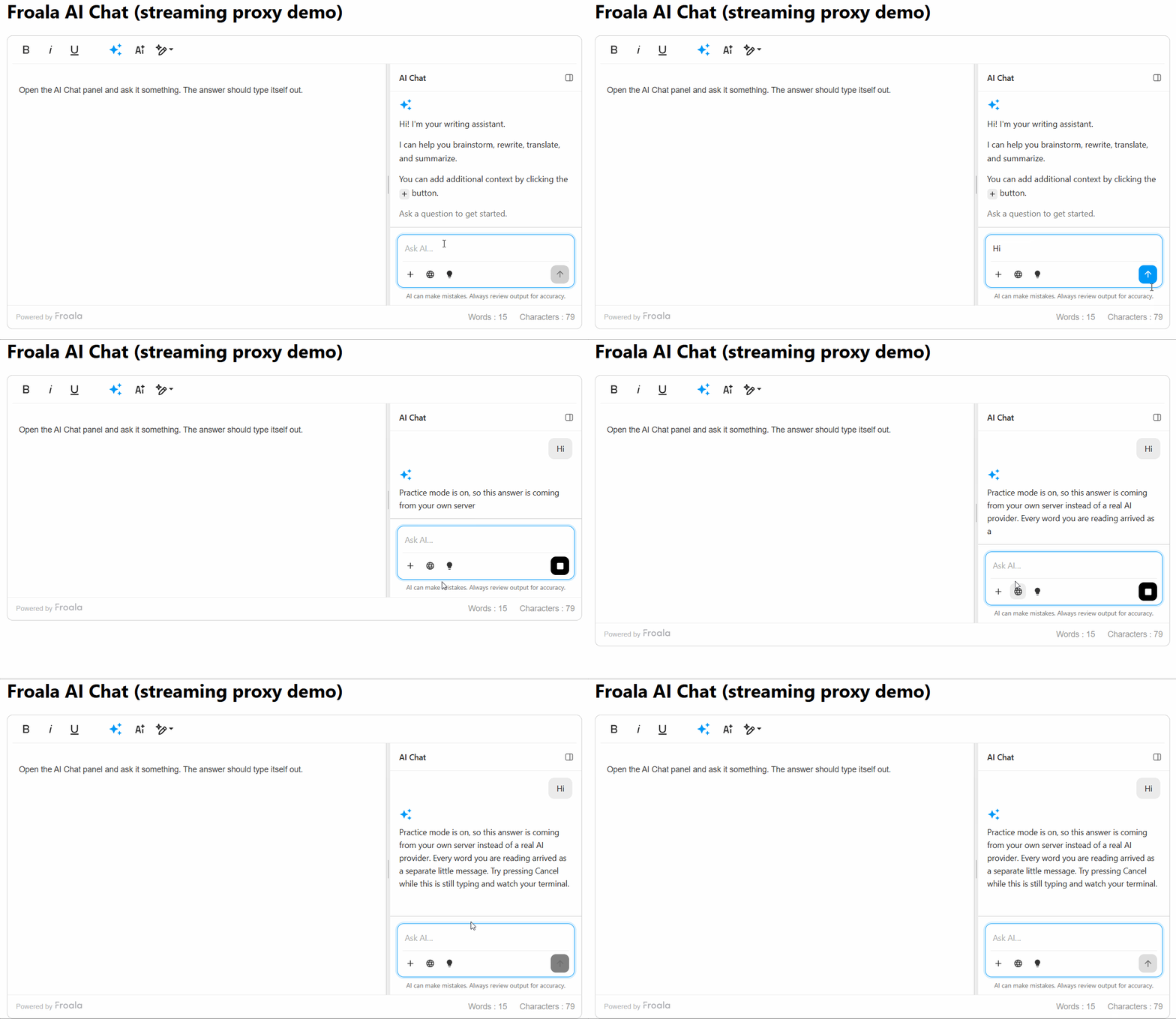
Open your browser to http://localhost:3000
Test 1: does it stream?
- Confirm
node server.jsis still running. - Click the AI Chat icon in the toolbar. The panel slides in from the right.
- Type anything and press Enter.
You should see words appear one at a time. In practice mode you will get the canned message about practice mode, arriving word by word. This proves the entire pipeline works.
Test 2: does Cancel actually cancel?
- Send another message.
- While it is still typing, click the Cancel button. The send arrow turns into a stop control while a response is generating.
- Watch your server’s terminal.
You should see:
Client hung up — cancelling the provider request.
That line is your proof. The abort travelled from a button click in the browser all the way to your server, which then cancelled the request going out to the provider. If that message does not appear, revisit the abort propagation section, you have a broken link.
Test 3: does the heartbeat work?
Temporarily bump HEARTBEAT_MS down to 2000 and restart the server. Open DevTools → Network tab, send a message, click the /ai/stream request, and look at the Response or EventStream tab. You should see : keep-alive lines interleaved with the data. Those are what keep a proxy from hanging up on you. Set it back to 15000 afterwards.
Test 4: switch on a real AI
Now that everything works, add your key. Stop the server with Ctrl + C, then:
# macOS / Linux
GROQ_API_KEY=your-real-key-here node server.js

# Windows PowerShell
$env:GROQ_API_KEY="your-real-key-here"; node server.js
The practice-mode line should disappear from the startup output. Ask a real question, and repeat Test 2. Cancelling now saves you real money.
Going to production
The code above is deliberately minimal so the streaming stays visible. Before it goes anywhere real, five changes:
1. Move the key to an environment variable properly. Create a .env file, add GROQ_API_KEY=your-real-key, add .env to your .gitignore, and load it with the dotenv package. A key committed to git stays readable in the history even after you delete the line, so treat any key that has ever been committed as compromised and rotate it with the provider.
2. Lock down CORS. app.use(cors()) currently allows any website on the internet to use your AI endpoint at your expense:
app.use(cors({ origin: 'https://yourapp.com' }));3. Add authentication and rate limiting. Your /ai/stream route is an open, unmetered door to a paid API. At minimum, check a session token on every request and cap how many calls one user can make per minute. Remember inline suggestions fire on every typing pause, so set that cap thoughtfully.
4. Remember what is in the prompt. request.prompt contains whatever the user attached as context, which can be the entire document. If those documents might hold sensitive customer data, your proxy is the right place to redact, log, or refuse it. It is the last point you control before the data reaches a third party.
5. Cap concurrent streams. Every open stream holds a connection on your server and an interval timer. Fine for ten users, less fine for ten thousand. Measure before you assume.
What you have built
A streaming AI Chat panel where the answer appears as it is written, the Cancel button genuinely cancels all the way back to the provider, timeouts behave sensibly at all three layers, and your API key never touches the browser.
That is the same architecture behind every serious AI editing feature you have used. It is not a toy version.
Next
You now have a working proxy. The next step depends on what you want to build:
- Add more AI features (tone, translate, improve writing): See the AI Assist Plugin reference.
- Switch providers (OpenAI, Claude, Gemini): The AI Chat Quick Start has parsing code for each one. Only your server changes; the browser stays the same.
- Deploy to production: Work through the five items in Going to production above before you do. The proxy is the last point you control before data reaches a third party.







No comment yet, add your voice below!