
Froala v5.4.0: AI Chat Assistant, Reviewable AI Edits, and Markdown
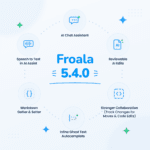
Froala v5.4.0 is our biggest AI release yet. You get a full AI Chat Assistant that lives in a side panel next to your content, AI Improve Writing that shows every suggested edit as an accept or reject change instead of overwriting your text, and Markdown getter and setter methods so Markdown can finally be the format you store, not just something you convert once. Collaboration also gets a solid upgrade, with track changes now covering drag and drop moves and code snippet edits.

Top Highlights
1. AI Chat Assistant: a conversation next to your document
What it is
A new AI Chat icon in the toolbar opens a collapsible panel docked to the right of the editor. Instead of firing a single prompt and dropping the answer into your content, you can now have a back and forth conversation: ask a question, get an answer, ask a follow-up and only then decide whether anything goes into the document.
You choose what the AI can see, using one or more context sources at the same time:
- Current Document: sends the whole editor content.
- Selected Content: sends only the text you highlighted.
- Uploaded files: PDF, DOCX, TXT, Markdown, and images (JPG, PNG, GIF, WebP).
- Reference URL: a link the AI can pull context from.
The panel also includes a web search toggle, a model dropdown, and a reasoning toggle so users can pick a fast model for quick questions or a stronger one for heavier work. The chat is provider agnostic, so it works with whichever AI service you already have configured.
When the AI proposes a rewrite, you review it before it lands. In normal mode, clicking Apply to document opens the same review popup used elsewhere in the editor, with additions and removals highlighted, and the affected part of the document is visibly highlighted the moment you click Apply. In collaboration mode, the suggestion appears as a Suggested rewrite card right inside the chat panel with a preview toggle and an Insert button.
Why it matters
Writers stop tab-switching to a separate AI tool and pasting content back and forth. Reviewers get a safety net, because nothing changes in the document until a human approves it. And because the model list is supplied by you rather than hard-coded by us, you stay in control of cost, provider, and data handling.
How to use it
Add the AI Chat button to your toolbar and supply the models you want users to choose from:
new FroalaEditor('#editor', {
  aiSupplementalTermsAccepted: true,
  toolbarButtons: ['bold', 'italic', 'aiChatAssistant'],
  aiChatModels: [
    { id: 'fast-model', name: 'Fast', webSearch: false, reasoning: false },
    { id: 'smart-model', name: 'Smart', webSearch: true, reasoning: true }
  ],
  aiChatDefaultModel: 'fast-model',
  aiChatWelcomeMessage: 'Hi! Ask me anything about this document.',
  aiAssistRequest: function (data, signal) {
    return fetch('https://your-ai-backend/chat', {
      method: 'POST',
      headers: { 'Content-Type': 'application/json' },
      body: JSON.stringify(data),
      signal: signal
    })
      .then(response => response.json())
      .then(result => result.answer);
  }
});
If you do not configure any models, the model dropdown simply does not appear.

Good to know
- Only one right-docked panel is open at a time. Opening AI Chat closes the Collaboration comments panel, and the other way around.
- The panel can be resized, but the width is not stored by the editor. Listen for the resize and pass the width back in yourself if you want it remembered.
- When the editor is disabled or read only, the chat panel dims and stops responding too.
- The Copy button on a chat message now copies formatted content, so bold text, lists, and headings survive when you paste into an email or another document.
2. AI Improve Writing with accept and reject changes
What it is
Select text in the editor and a floating action button appears. Click Improve Writing and only that selection is sent to your AI provider. The result comes back as tracked changes: removed text is struck through, added text is highlighted, and you can step through the changes one at a time and accept or reject each one, or use Accept All and Reject All. The original content stays untouched until you accept.
The behaviour adapts to how your editor is set up:
| Setup | Where the diff appears | What happens on accept |
|---|---|---|
| Collaboration off | Inline in the editor | The change is applied in place |
| Collaboration on, Editing mode | In a review popup | The change is inserted as a normal edit and syncs to everyone |
| Collaboration on, Suggesting mode | In a review popup | The change becomes a tracked suggestion for others to review |
Why it matters
AI output is a proposal, not a decision. Staging the diff means an author never has to undo a bad rewrite, and in a shared document it means half-finished AI suggestions never appear in a teammate’s screen before anyone approved them.
How to use it
new FroalaEditor('#editor', {
  aiSupplementalTermsAccepted: true,
  aiImproveWritingPrompt: 'Improve the clarity and grammar of this text.',
  aiAssistRequest: function (data, signal) {
    return fetch('https://your-ai-backend/improve', {
      method: 'POST',
      headers: { 'Content-Type': 'application/json' },
      body: JSON.stringify({ prompt: data.prompt }),
      signal: signal
    })
      .then(response => response.json())
      .then(result => result.answer);
  }
});
Under the hood, the comparison logic behind this feature is now a single shared module used by Improve Writing, the AI Chat previews, and the collaborative version control Compare With view.

3. Markdown in, Markdown out
What it is
Two new methods, getMarkdown() and setMarkdown(), work exactly like html.get() and html.set() do for HTML. Authors edit in the familiar rich text interface, but your application reads and writes Markdown. Four lifecycle events let you hook into the flow: markdown.beforeGet, markdown.afterGet, markdown.beforeSet, and markdown.set.
Why it matters
If your product stores content in Markdown, the way GitHub comments or Asana descriptions do, you no longer have to choose between a good editing experience and keeping Markdown as your source of truth. Content round-trips cleanly: load Markdown, edit visually, save Markdown, load it again later and keep editing.
How to use it
const editor = new FroalaEditor('#editor', {
  pluginsEnabled: ['markdown'],
  events: {
    'markdown.afterGet': function (markdown) {
      console.log('Markdown fetched:', markdown);
    },
    'markdown.beforeSet': function (markdown) {
      // Return false to cancel setMarkdown()
      if (!markdown.trim()) {
        return false;
      }
    }
  }
});

// Load stored Markdown into the editor
editor.setMarkdown('# Release notes\n\nWritten in Markdown.');

// Read it back out to save
const content = editor.getMarkdown();
getMarkdown() reads live editor content and converts it when Markdown mode is on, or returns the cached value when it is off. setMarkdown() does the reverse. We also fixed a long standing annoyance where a Shift+Enter line break came back as a literal <br> in your Markdown text. It now returns as a proper line break, and it stays clean no matter how many times you edit the content.
4. Track changes now covers moves and code snippets
What it is
Two gaps in collaborative Suggesting mode are closed.
Drag and drop is now tracked. Dragging an image, table, video, or a block of selected text creates one linked pair of suggestions: a red struck-through marker where the content used to be, and a green highlighted copy where it now sits. The suggestions panel shows this as a single Moved card rather than two unrelated Added and Removed cards, and accepting or rejecting either half automatically resolves the other. Dragging an already-pending move a second time is recognized as the same proposal, so you never build up a pile of stray cards.
Code snippet edits and deletes are now tracked. Previously, inserting a code snippet created a suggestion but editing or deleting one applied silently. Editing is now recorded as a single in-place Replace suggestion, and deleting wraps the snippet as a normal delete suggestion.

Why it matters
Reviewers can trust the suggestions panel again. If a change happened in the document, it shows up as something a reviewer can accept or reject, with no silent edits slipping through and no confusing duplicate cards.

Also in v5.4.0
A few smaller AI and collaboration additions worth knowing about:
- Speech to text in AI Assist. A microphone button lets users dictate a prompt instead of typing it. Audio is captured in the browser and transcribed through your existing
aiAssistRequesthandler, so it works in Chrome, Firefox, and Safari with no extra service. Controlled byaiSpeechToText(defaulttrue), plusaiSpeechToTextWaveform,aiSpeechToTextListeningText, andaiSpeechToTextMaxDuration(default 120 seconds).
- Inline ghost text autocomplete. An opt-in, Smart Compose style suggestion that appears in grey at your cursor when you pause at the end of a block. Press
Tabto accept,Escto dismiss, or just keep typing. Configured withaiAssistAutoComplete,aiAssistAutoCompleteDelay, andaiAssistAutoCompletePromptTemplate. Ghost text is stripped beforehtml.get(), so it can never leak into saved content.
- AI Shortcuts menu cleanup. The Tone and Translate menus are now hidden when no options are configured, and inserting AI content causes far less layout shift.
- Collaboration fixes. The user name label now appears on the very first character typed, suggestion cards get a proper reply field with Cancel and Reply buttons, and word replacements made through the browser spell check menu are tracked correctly.
A full list of the remaining enhancements and bug fixes is on the v5.4.0 changelog page.
Upgrading to v5.4.0
1. Update the package
# npm
npm install froala-editor@5.4.0

# yarn
yarn upgrade froala-editor@5.4.0

# pnpm
pnpm update froala-editor@5.4.0
If you use a framework wrapper, update it alongside the core package, for example npm install react-froala-wysiwyg@5.4.0.
2. Or update your CDN links
<link href="https://cdn.jsdelivr.net/npm/froala-editor@5.4.0/css/froala_editor.pkgd.min.css" rel="stylesheet">
<script src="https://cdn.jsdelivr.net/npm/froala-editor@5.4.0/js/froala_editor.pkgd.min.js"></script>
3. Enable what you want to use. The AI Chat panel needs the aiChatAssistant toolbar button and an aiAssistRequest handler. Inline autocomplete is off by default and needs aiAssistAutoComplete: true. Markdown getter and setter methods need the markdown plugin enabled.
5. Clear your build cache and rebuild, then test any custom AI or collaboration integration against the new shared review flow.
Coming from Froala 3 or 4? Start with the migration guide, then apply the steps above.
Try it out
The fastest way to get a feel for v5.4.0 is to use it.
- Open the playground and try the AI Chat panel and Improve Writing on real content.
- Download or upgrade and ship it.
We would love to hear what you build with it. If something does not behave the way you expect, open an issue and tell us.


No comment yet, add your voice below!