
How to Set Up Froala with DeepSeek AI Assist in WordPress
Table of contents
- Key Takeaways
- Why Choose Froala with AI Assist for Your WordPress Site?
- The Power of AI-Enhanced Content Creation
- Benefits of This Integration
- Real-World Use Cases
- Learning Management Systems (LMS)
- Content Publishing Platforms
- Corporate Intranets and Knowledge Bases
- E-Learning and Course Creation
- What You'll Build
- Prerequisites
- Step 1: Securing Your DeepSeek API Key
- Adding the API Key to wp-config.php
- Step 2: Creating the WordPress REST API Endpoint
- Understanding the Architecture
- Implementing the REST API Endpoint
- Option A: Adding to functions.php
- Option B: Creating a Custom Plugin (Recommended)
- Understanding the Code
- Step 3: Creating a WordPress Page with Froala Editor
- Creating the Page Template
- Adding the Froala Editor
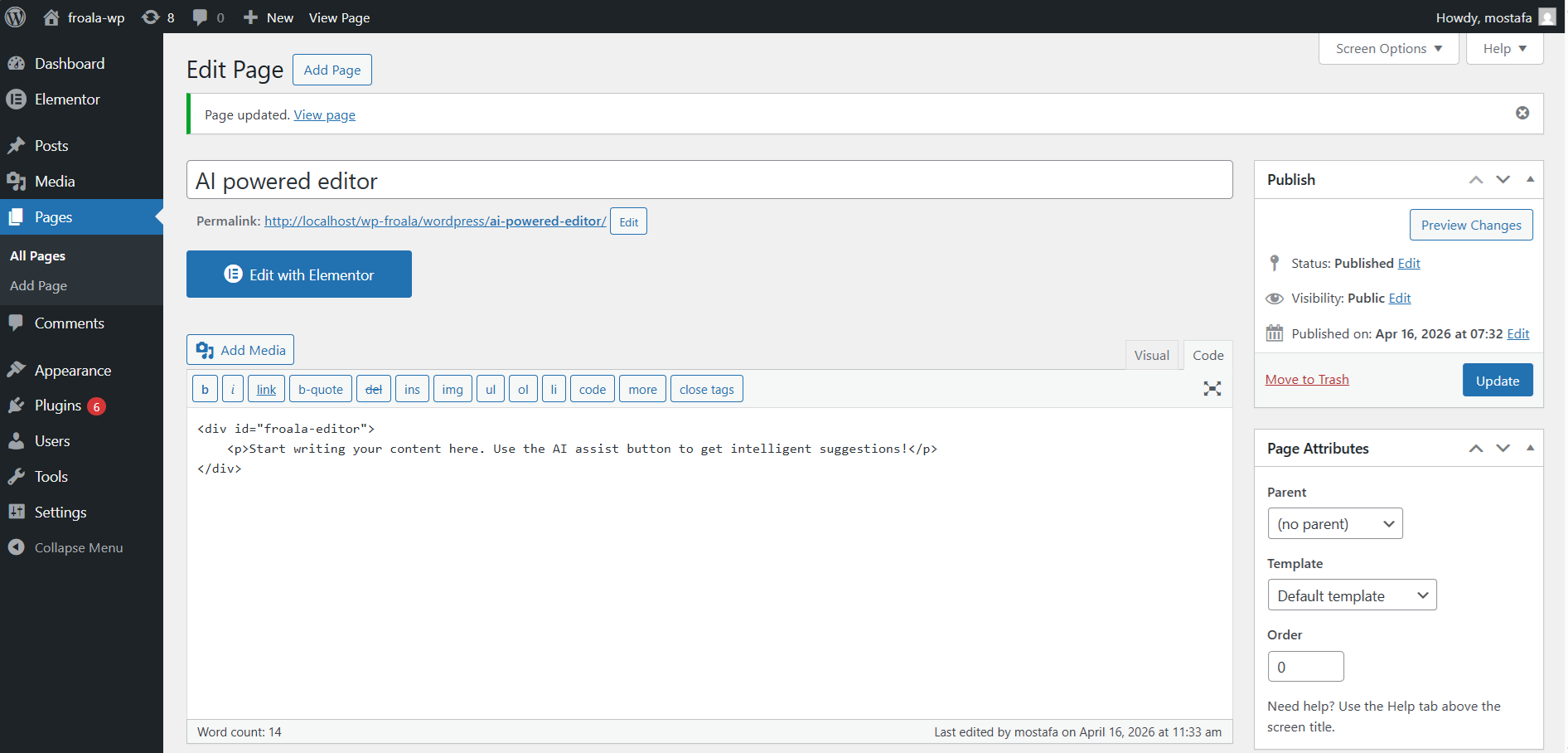
- Creating the Page Content
- Step 4: Initializing Froala with AI Assist
- Understanding the Froala Configuration
- Step 5: Testing Your WordPress AI Editor
- Troubleshooting Common Issues
- Advanced Customization Options
- Adding User-Specific Rate Limiting
- Implementing Usage Logging
- Security Best Practices
- Input Validation and Sanitization
- Permission Checks
- Conclusion
- Next Steps
- Resources
In today’s digital landscape, content creation has become increasingly sophisticated, and users expect intelligent, AI-powered tools to enhance their writing experience. Whether you’re building a Learning Management System (LMS), a content publishing platform, or any WordPress site that requires rich text editing, integrating a WordPress AI editor can dramatically improve user productivity and content quality.
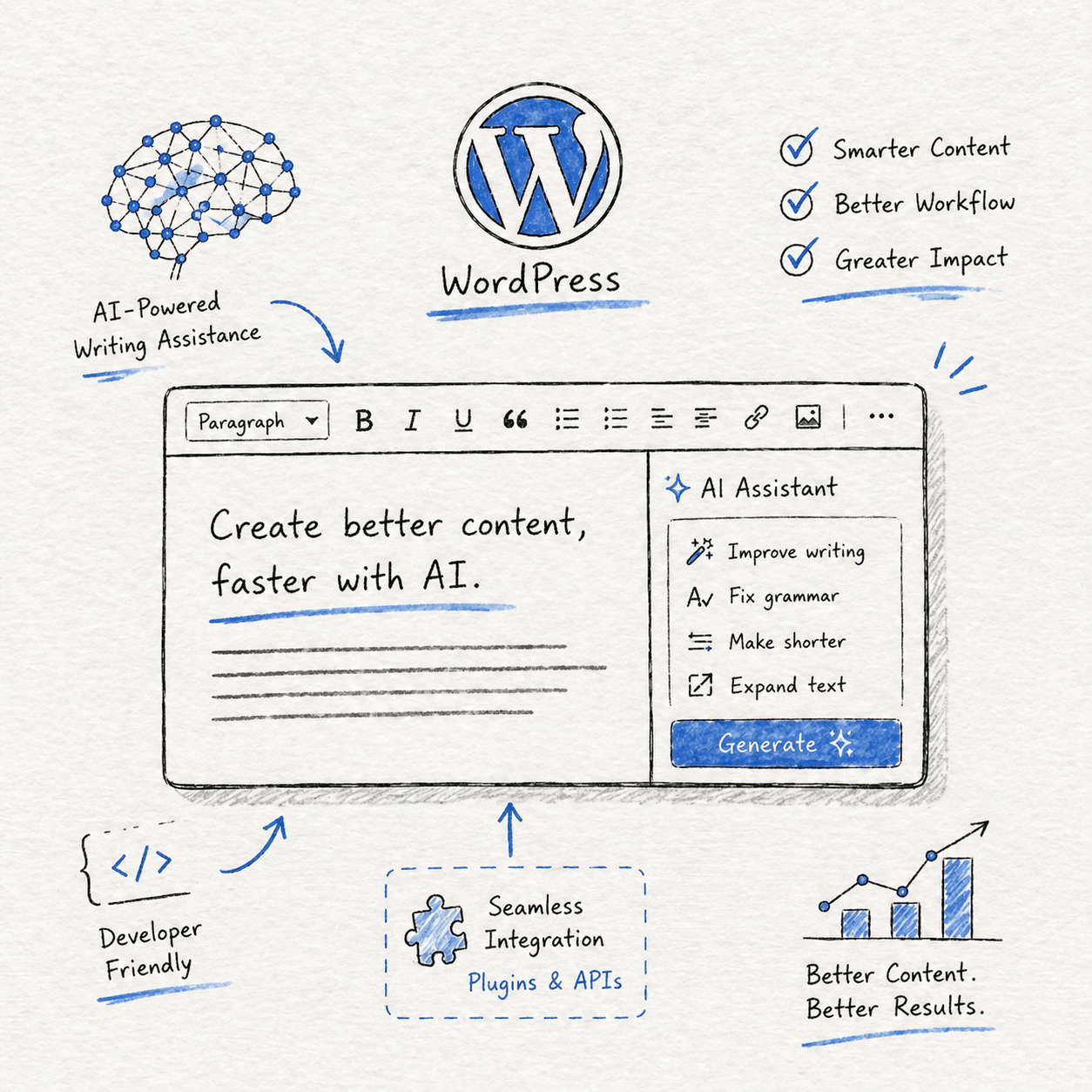
In this comprehensive tutorial, we’ll walk you through setting up the Froala WYSIWYG editor with AI assistance powered by DeepSeek on your WordPress frontend pages.
Key Takeaways
- Security First: By handling API calls server-side through WordPress’s REST API, you’ve protected your DeepSeek API key and prevented unauthorized usage.
- Flexibility: The modular architecture allows easy customization of AI commands, user permissions, and integration with other WordPress features.
- User Experience: Users get seamless AI assistance without leaving the editor, dramatically improving their content creation workflow.
- Scalability: The implementation can handle multiple users and can be extended with caching, rate limiting, and asynchronous processing as your needs grow.
- Cost Control: With proper monitoring, rate limiting, and caching, you can control API costs while providing valuable AI features.
Why Choose Froala with AI Assist for Your WordPress Site?
Before diving into the technical implementation, let’s understand why this integration is a game-changer for WordPress developers and site owners.
The Power of AI-Enhanced Content Creation
Froala Editor is already one of the most feature-rich WYSIWYG editors available, offering a clean interface, extensive formatting options, and excellent performance.
It offers an affordable, enterprise-grade solution for rich-text editing, with plans that include unlimited editor loads and user seats, so costs don’t multiply with scale.
When you combine it with AI capabilities, you unlock a new dimension of content creation that includes:
- Intelligent Chat that can be used for
- Intelligent content suggestions that help users overcome writer’s block
- Grammar and style improvements that enhance content quality
- Content expansion capabilities that can elaborate on brief ideas
- Summarization features for condensing lengthy content
- Tone adjustment to match different audiences and contexts
- Translation assistance for multilingual sites
Froala’s AI Assist plugin is model-agnostic and works with any AI API. This tutorial uses DeepSeek as the AI provider—a cost-effective and capable choice for many use cases. However, you can substitute any other AI model (OpenAI’s GPT-4, Anthropic’s Claude, Llama, etc.) by adjusting the API endpoint, authentication method, and request/response formatting in the code. The integration steps and architecture remain largely the same regardless of which model you choose.
Benefits of This Integration
Implementing a WordPress AI editor using Froala and DeepSeek offers numerous advantages:
- Enhanced User Experience: Students writing essays in an LMS, bloggers crafting articles, or team members collaborating on documentation all benefit from real-time AI assistance without leaving the editor interface.
- Server-Side Security: By handling API calls on the WordPress backend, you keep your DeepSeek API keys secure and never expose them to client-side code. This architecture prevents unauthorized usage and protects your credentials.
- Seamless WordPress Integration: The solution leverages WordPress’s native REST API infrastructure, ensuring compatibility with WordPress standards and making maintenance straightforward.
- Customizable and Extensible: The implementation we’ll build can be easily modified to add custom prompts, implement rate limiting, add user-specific features, or integrate with other WordPress plugins.
Real-World Use Cases
Before we begin the implementation, let’s explore some practical scenarios where this WordPress AI editor integration shines:
Learning Management Systems (LMS)
Imagine students working on essays or research papers within your LMS. With AI assist, they can:
- Get suggestions for improving their thesis statements
- Expand on complex ideas with additional context
- Check their writing for clarity and coherence
- Generate outlines for structured essays
- Receive feedback on argument strength
Content Publishing Platforms
For blogs, news sites, or content marketing platforms:
- Writers can quickly generate article introductions
- Content teams can maintain consistent tone across multiple authors
- Editors can use AI to suggest improvements before publication
- SEO-focused content can be enhanced with keyword-rich suggestions
- Meta descriptions and summaries can be auto-generated
Corporate Intranets and Knowledge Bases
Organizations using WordPress for internal documentation benefit from:
- Standardized documentation formatting and style
- Quick generation of technical explanations
- Translation of content for global teams
- Summarization of lengthy reports
- Consistent terminology across departments
E-Learning and Course Creation
Course creators and instructional designers can:
- Generate quiz questions from course content
- Create engaging lesson descriptions
- Develop learning objectives with AI assistance
- Produce student-friendly explanations of complex topics
- Draft feedback templates for assignments
What You’ll Build
A WordPress page where users can write content with:
- A professional WYSIWYG editor (Froala)
- AI writing assist features (chat, tone, translation)
- DeepSeek as the backend AI model
- Server-side API handling for security
Prerequisites
Before starting this tutorial, ensure you have:
- A WordPress installation (version 5.0 or higher recommended)
- Administrative access to your WordPress site
- FTP or file manager access to edit WordPress files
- A DeepSeek API key (sign up at DeepSeek’s website)
- Froala Editor license (or trial version)
- Basic understanding of PHP, JavaScript, and WordPress development
- A code editor for modifying WordPress files
Step 1: Securing Your DeepSeek API Key
The first and most critical step in building a secure WordPress AI editor is properly storing your API credentials. Never expose API keys in client-side JavaScript code, as this would allow anyone to use your API quota and potentially incur costs.
Adding the API Key to wp-config.php
Open your wp-config.php file, which is located in your WordPress root directory. This file contains your WordPress configuration settings and is the ideal place to store sensitive credentials.
Add the following line before the comment that says /* That's all, stop editing! Happy publishing. */:
define( 'DEEPSEEK_API_KEY', 'sk-****' );
Replace sk-**** with your actual DeepSeek API key. This approach keeps your key secure because:
- The wp-config.php file is never accessible via web browsers when properly configured
- The constant is available throughout your WordPress installation
- You can easily change the key without modifying multiple files
- It follows WordPress security best practices
Why this matters: Storing sensitive keys in wp-config keeps them out of the database and version control. WordPress loads this file before anything else, making it available everywhere you need it.
Security Tip: Ensure your wp-config.php file has appropriate permissions (typically 440 or 400) to prevent unauthorized access. You can set this via FTP or your hosting control panel.
Step 2: Creating the WordPress REST API Endpoint
WordPress’s REST API provides a standardized way to interact with your site programmatically. We’ll create a custom endpoint that acts as a secure proxy between the Froala editor and the DeepSeek API.
Understanding the Architecture
Here’s how the data flow works:
- User types a prompt in the Froala editor and triggers AI assist
- Froala sends a request to your WordPress REST API endpoint
- WordPress receives the request, sanitizes the input, and validates it
- WordPress makes a server-side request to DeepSeek’s API with your secure API key
- DeepSeek processes the request and returns AI-generated content
- WordPress formats the response and sends it back to Froala
- Froala displays the AI-generated content to the user
This architecture ensures your API key never leaves the server and all requests are properly validated.
Implementing the REST API Endpoint
You have two options for adding this code:
Option A: Add to functions.php (simpler, good for single-site implementations)
Option B: Create a custom plugin (recommended for portability and cleaner code organization)
For this tutorial, we’ll show both approaches, but we recommend Option B for production environments.
Option A: Adding to functions.php
Open your theme’s functions.php file (located in wp-content/themes/your-theme/functions.php) and add:
/**
* Register custom REST API endpoint for DeepSeek AI integration
*/
add_action( 'rest_api_init', function () {
   register_rest_route( 'ai-assist', '/deepseek', array(
       'methods'  => 'POST',
       'callback' => 'handle_deepseek_request',
       'permission_callback' => '__return_true',
   ));
});

/**
* Handle DeepSeek API requests
*
* @param WP_REST_Request $request The REST API request object
* @return array|WP_Error Response data or error
*/
function handle_deepseek_request( $request ) {
   // Extract and sanitize the user's prompt
   $params = $request->get_json_params();
   $user_prompt = sanitize_text_field( $params['prompt'] );

   // Validate that we have a prompt
   if ( empty( $user_prompt ) ) {
       return new WP_Error(
           'missing_prompt',
           'No prompt provided.',
           array( 'status' => 400 )
       );
   }

   // Call DeepSeek API securely from the server
   $response = wp_remote_post( 'https://api.deepseek.com/v1/chat/completions', array(
       'headers' => array(
           'Authorization' => 'Bearer ' . DEEPSEEK_API_KEY,
           'Content-Type'  => 'application/json',
       ),
       'body' => json_encode( array(
           'model'    => 'deepseek-chat',
           'messages' => array(
               array( 'role' => 'user', 'content' => $user_prompt )
           ),
       )),
       'timeout' => 30,
   ));

   // Handle connection errors
   if ( is_wp_error( $response ) ) {
       return new WP_Error(
           'api_error',
           'DeepSeek API connection failed: ' . $response->get_error_message(),
           array( 'status' => 500 )
       );
   }

   // Parse the API response
   $body = json_decode( wp_remote_retrieve_body( $response ), true );

   // Check if DeepSeek actually returned an answer
   if ( isset( $body['choices'][0]['message']['content'] ) ) {
       return array(
           'success' => true,
           'data'    => array(
               'content' => $body['choices'][0]['message']['content']
           )
       );
   }

   // Fallback for API errors (like quota exceeded)
   return array(
       'success' => false,
       'error'   => $body['error']['message'] ?? 'Unknown API error'
   );
}
Option B: Creating a Custom Plugin (Recommended)
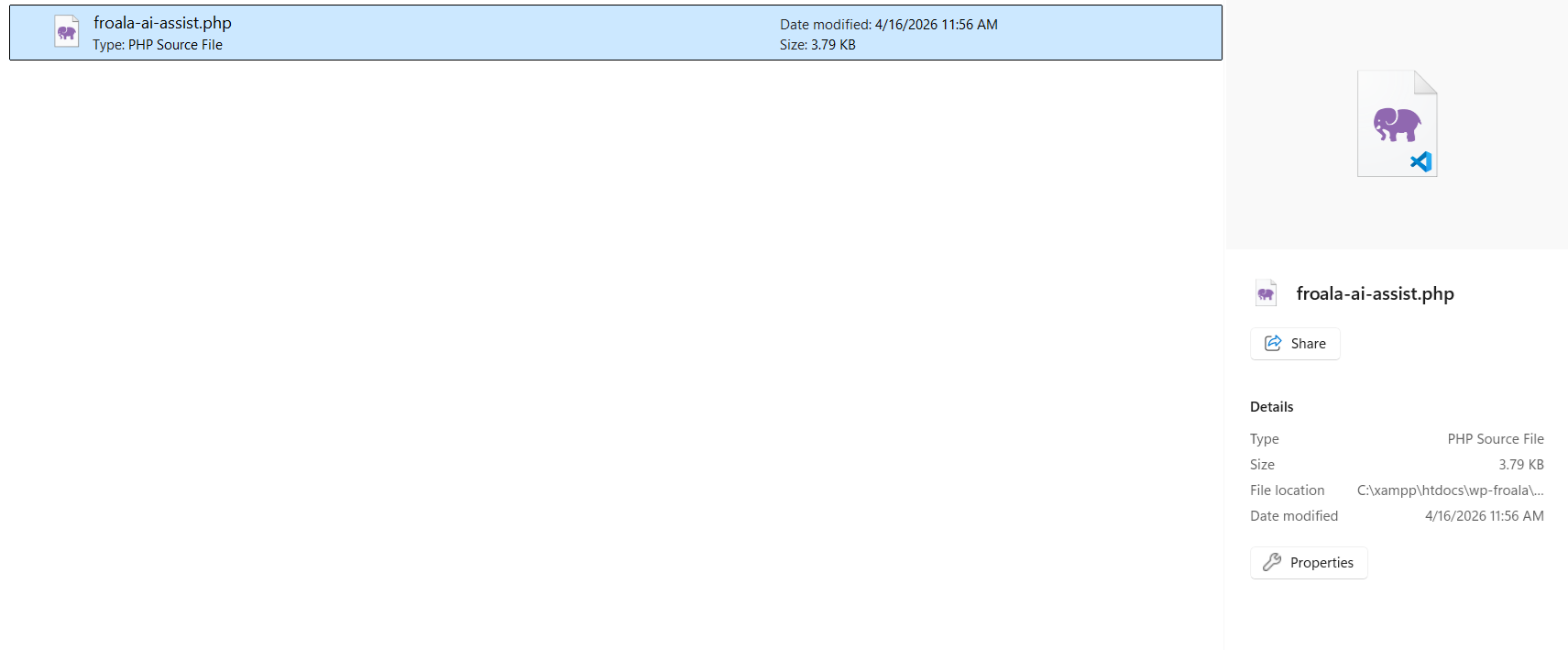
Create a new directory in wp-content/plugins/ called froala-ai-assist. Inside this directory, create a file named froala-ai-assist.php:
/**
* Plugin Name: Froala AI Assist with DeepSeek
* Plugin URI: https://yoursite.com
* Description: Integrates Froala Editor with DeepSeek AI for intelligent content assistance
* Version: 1.0.0
* Author: Your Name
* Author URI: https://yoursite.com
* License: GPL v2 or later
* Text Domain: froala-ai-assist
*/

// Prevent direct access
if ( ! defined( 'ABSPATH' ) ) {
   exit;
}

/**
* Main plugin class
*/
class Froala_AI_Assist {

   /**
    * Constructor
    */
   public function __construct() {
       add_action( 'rest_api_init', array( $this, 'register_rest_routes' ) );
   }

   /**
    * Register REST API routes
    */
   public function register_rest_routes() {
       register_rest_route( 'ai-assist', '/deepseek', array(
           'methods'  => 'POST',
           'callback' => array( $this, 'handle_deepseek_request' ),
           'permission_callback' => array( $this, 'check_permissions' ),
       ));
   }

   /**
    * Check if user has permission to use AI assist
    *
    * @return bool
    */
   public function check_permissions() {
       // For now, allow all authenticated users
       // You can customize this based on your requirements
       return true; // is_user_logged_in();
   }

   /**
    * Handle DeepSeek API requests
    *
    * @param WP_REST_Request $request
    * @return array|WP_Error
    */
   public function handle_deepseek_request( $request ) {
       $params = $request->get_json_params();
       $user_prompt = sanitize_text_field( $params['prompt'] ?? '' );

       if ( empty( $user_prompt ) ) {
           return new WP_Error(
               'missing_prompt',
               __( 'No prompt provided.', 'froala-ai-assist' ),
               array( 'status' => 400 )
           );
       }

       // Check if API key is configured
       if ( ! defined( 'DEEPSEEK_API_KEY' ) || empty( DEEPSEEK_API_KEY ) ) {
           return new WP_Error(
               'missing_api_key',
               __( 'DeepSeek API key not configured.', 'froala-ai-assist' ),
               array( 'status' => 500 )
           );
       }

       // Call DeepSeek API
       $response = wp_remote_post( 'https://api.deepseek.com/v1/chat/completions', array(
           'headers' => array(
               'Authorization' => 'Bearer ' . DEEPSEEK_API_KEY,
               'Content-Type'  => 'application/json',
           ),
           'body' => json_encode( array(
               'model'    => 'deepseek-chat',
               'messages' => array(
                   array( 'role' => 'user', 'content' => $user_prompt )
               ),
               'temperature' => 0.7,
               'max_tokens' => 2000,
           )),
           'timeout' => 30,
       ));

       if ( is_wp_error( $response ) ) {
           return new WP_Error(
               'api_error',
               sprintf(
                   __( 'DeepSeek API connection failed: %s', 'froala-ai-assist' ),
                   $response->get_error_message()
               ),
               array( 'status' => 500 )
           );
       }

       $body = json_decode( wp_remote_retrieve_body( $response ), true );

       if ( isset( $body['choices'][0]['message']['content'] ) ) {
           return array(
               'success' => true,
               'data'    => array(
                   'content' => $body['choices'][0]['message']['content']
               )
           );
       }

       return array(
           'success' => false,
           'error'   => $body['error']['message'] ?? __( 'Unknown API error', 'froala-ai-assist' )
       );
   }
}

// Initialize the plugin
new Froala_AI_Assist();
After creating this file, activate the plugin from your WordPress admin panel under Plugins > Installed Plugins.
Understanding the Code
Let’s break down the key components of this implementation:
- REST Route Registration: The
register_rest_route()function creates a new API endpoint at/wp-json/ai-assist/deepseek. This endpoint accepts POST requests and routes them to our handler function. - Input Sanitization: We use
sanitize_text_field()to clean the user’s prompt, preventing potential security issues like XSS attacks. - API Request: The
wp_remote_post()function is WordPress’s built-in method for making HTTP requests. It’s more secure and reliable than using PHP’s cURL directly. - Error Handling: We check for both connection errors and API-level errors, providing meaningful feedback to users.
- Response Formatting: The function returns a standardized response format that Froala can easily parse and display.
Step 3: Creating a WordPress Page with Froala Editor
Now that our backend is ready, let’s create a frontend page where users can interact with the WordPress AI editor.
Creating the Page Template
Create a new page in WordPress (Pages > Add New) and give it a title like “AI-Powered Editor” or “Write with AI Assist”. You can use the default page template or create a custom one.
Adding the Froala Editor
You’ll need to enqueue Froala’s CSS and JavaScript files. Add this to your theme’s functions.php or your custom plugin:
/**
* Enqueue Froala Editor assets
*/
function enqueue_froala_editor_assets() {
   // Only load on specific pages
   if ( is_page( 'ai-powered-editor' ) ) { // Replace with your page slug

       // Froala CSS
       wp_enqueue_style(
           'froala-editor',
           'https://cdn.jsdelivr.net/npm/froala-editor@latest/css/froala_editor.pkgd.min.css',
           array(),
           '4.0.0'
       );

       wp_enqueue_style(
           'froala-style',
           'https://cdn.jsdelivr.net/npm/froala-editor@latest/css/froala_style.min.css',
           array(),
           '4.0.0'
       );

       // Froala JavaScript
       wp_enqueue_script(
           'froala-editor',
           'https://cdn.jsdelivr.net/npm/froala-editor@latest/js/froala_editor.pkgd.min.js',
           array( 'jquery' ),
           '4.0.0',
           true
       );

      /*  Add scripts for other feature dependencies as needed.*/


       // Custom initialization script
       wp_enqueue_script(
           'froala-init',
           get_template_directory_uri() . '/js/froala-init.js',
           array( 'froala-editor' ),
           '1.0.0',
           true
       );

       // Pass WordPress REST API URL to JavaScript
       wp_localize_script( 'froala-init', 'wpApiSettings', array(
           'root' => esc_url_raw( rest_url() ),
           'nonce' => wp_create_nonce( 'wp_rest' )
       ));
   }
}
add_action( 'wp_enqueue_scripts', 'enqueue_froala_editor_assets' );
Creating the Page Content
In your page editor, switch to the HTML/Code view and add:
 <div id="froala-editor">
    <p>Start writing your content here. Use the AI assist button to get intelligent suggestions!</p>
</div>

<style>
    #froala-editor {
        margin: 20px 0;
        min-height: 400px;
    }

</style>
Step 4: Initializing Froala with AI Assist
Create a new JavaScript file in your theme directory at js/froala-init.js:
/**
* Initialize Froala Editor with DeepSeek AI Assist
*/
(function($) {
   'use strict';

   /**
    * Call DeepSeek API through WordPress REST endpoint
    *
    * @param {Object} data- The user's prompt
    *
    */
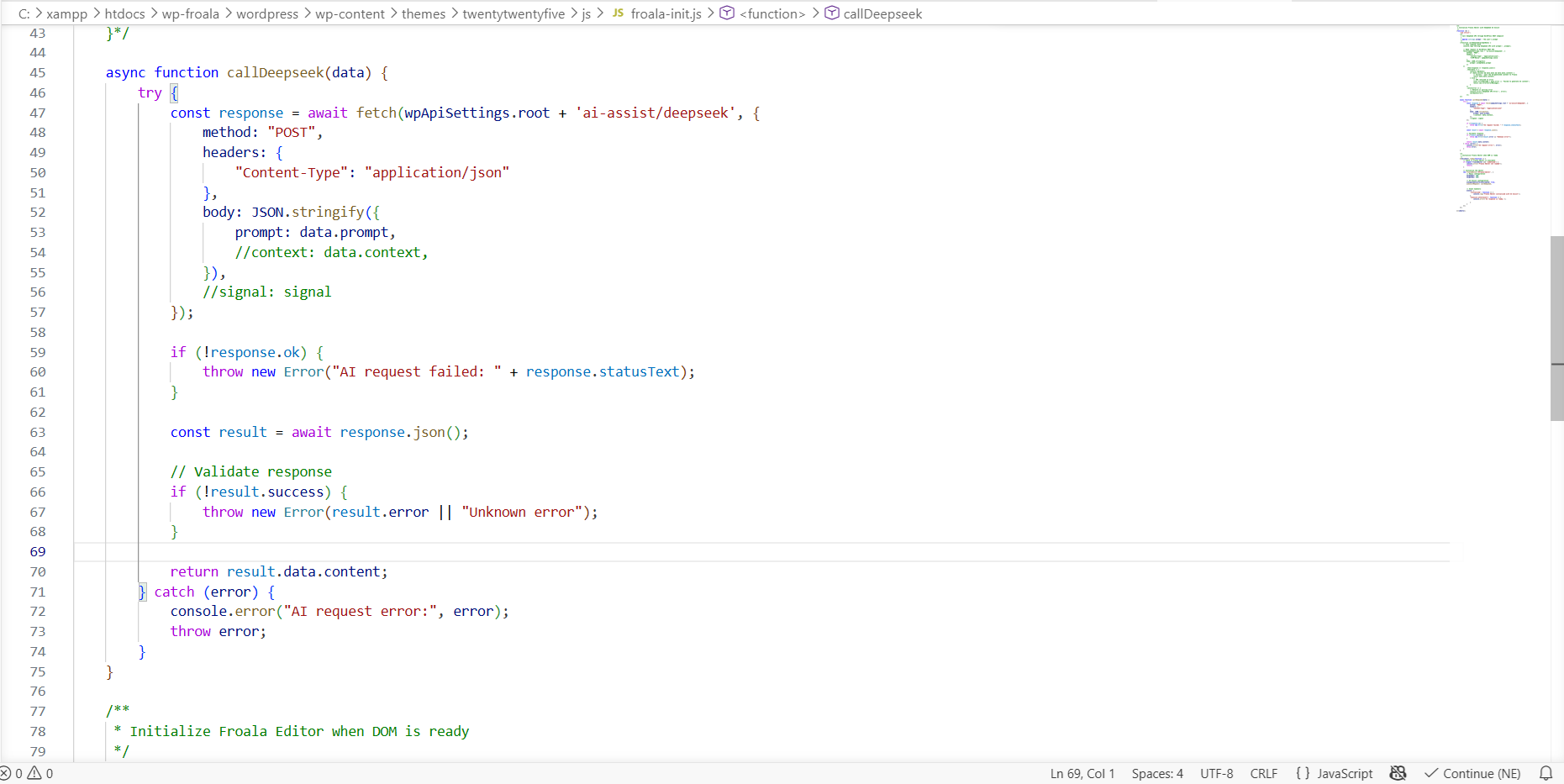
    async function callDeepseek(data) {

       try {

           const response = await fetch(wpApiSettings.root + 'ai-assist/deepseek', {

               method: "POST",

               headers: {

                   "Content-Type": "application/json"

               },

               body: JSON.stringify({

                   prompt: data.prompt,

                   //context: data.context,

               }),

               //signal: signal

           });


           if (!response.ok) {

               throw new Error("AI request failed: " + response.statusText);

           }


           const result = await response.json();


           // Validate response

           if (!result.success) {

               throw new Error(result.error || "Unknown error");

           }


           return result.data.content;

       } catch (error) {

           console.error("AI request error:", error);

           throw error;

       }

   }

   /**
    * Initialize Froala Editor when DOM is ready
    */
   $(document).ready(function() {

       // Check if Froala Editor is available
       if (typeof FroalaEditor === 'undefined') {

           console.error('Froala Editor not loaded');

           return;

       }


       // Initialize the editor

       new FroalaEditor('#froala-editor', {

           // Basic configuration

           heightMin: 400,

           heightMax: 800,


           // AI Assist configuration

           aiSupplementalTermsAccepted: true,

           aiAssistRequest: callDeepseek,


           // Event handlers

           events: {

               'initialized': function () {

                   console.log('Froala Editor initialized with AI Assist');

               },

               'aiAssist.afterInsert': function () {

                   console.error('AI response is ready.');


               }

           }

       });
   });

})(jQuery);
Understanding the Froala Configuration
Let’s examine the key configuration options:
- aiSupplementalTermsAccepted: This boolean flag indicates that you’ve accepted Froala’s terms for using AI features. Set this to
trueto enable AI functionality. - aiAssistRequest: This is the crucial connection point. We pass our
callDeepseekfunction here, which Froala will call whenever a user requests AI assistance. - Event Handlers: We set up event listeners to track initialization and AI response insertion.
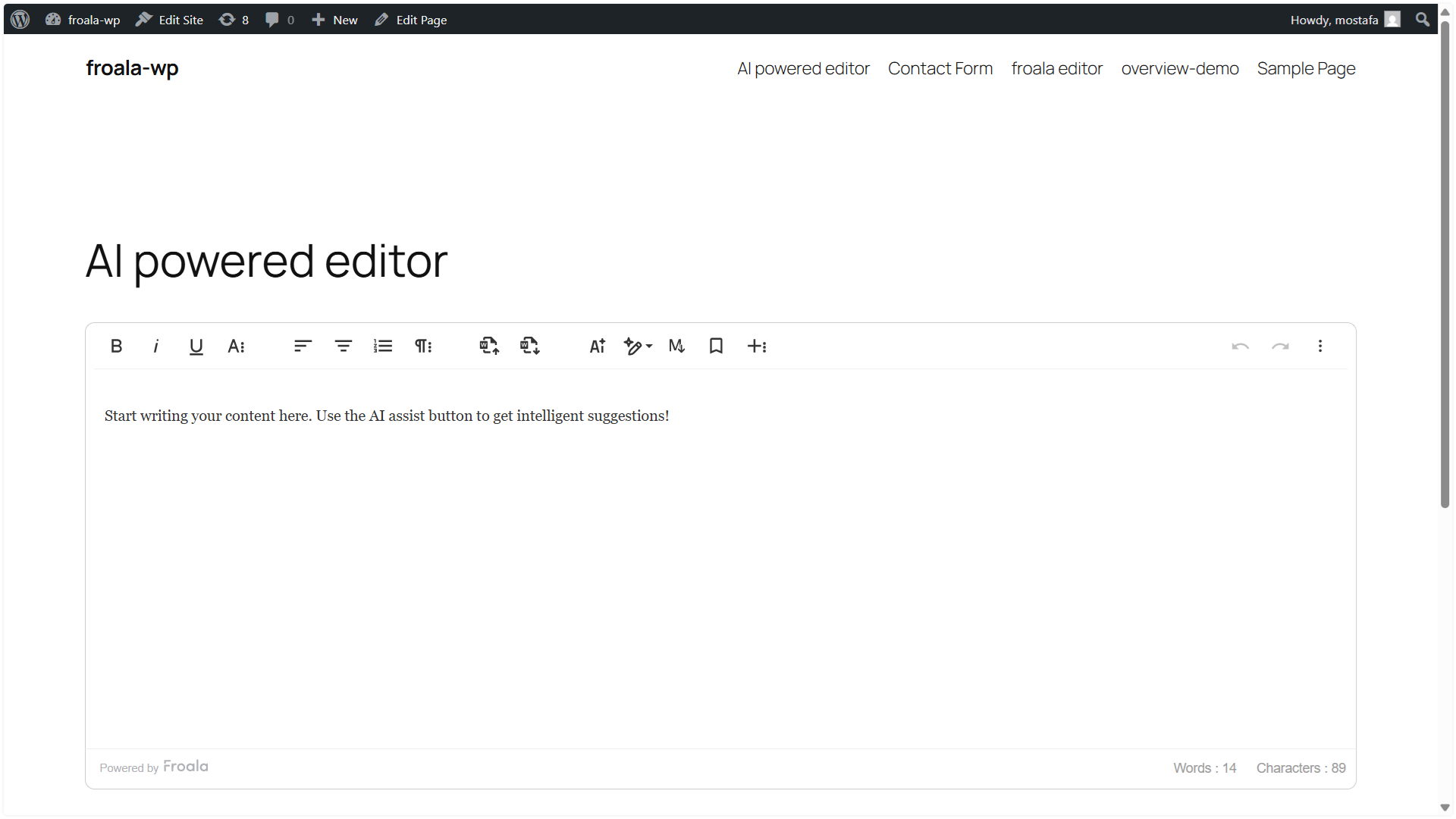
Step 5: Testing Your WordPress AI Editor
Now that everything is configured, let’s test the integration:
- Navigate to Your Page: Visit the page where you added the Froala editor
- Write Some Content: Type a paragraph or two of text
- Select Text: Highlight some of your content
- Click AI Assist: Look for the AI assist button in the Froala toolbar
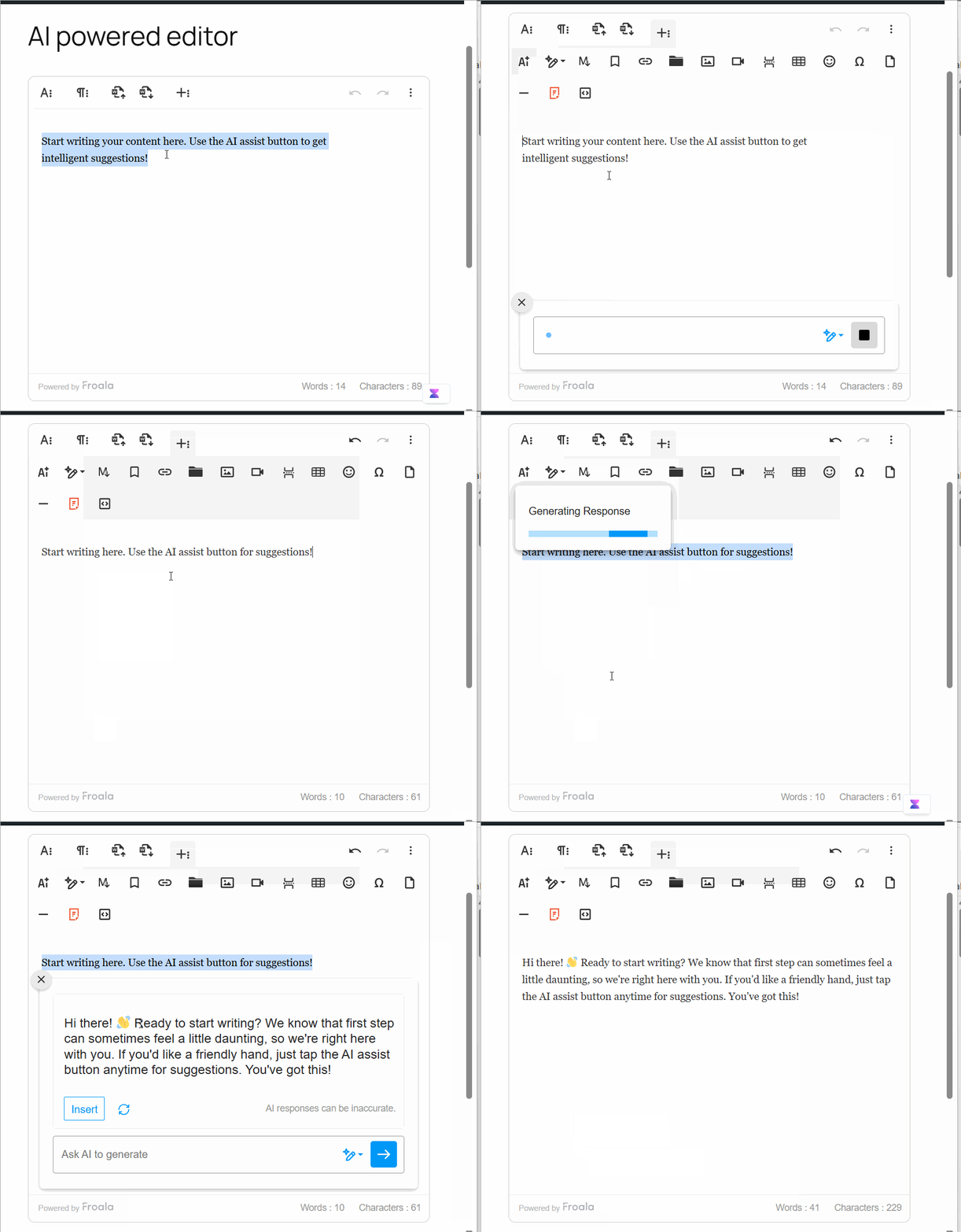
- Ask Anything: Try one of the AI commands like “Write about X” or “Expand Content” and watch the magic happen in real-time as DeepSeek processes your request.
- Review Results: The AI-generated content should appear, which you can accept, modify, or reject
Troubleshooting Common Issues
Problem: AI Assist button doesn’t appear
- Solution: Verify that the AI Assist plugin JavaScript is loaded and activated and you are not customizing the toolbar editor buttons. Check your browser’s console for errors.
Problem: “API key not configured” error
- Solution: Double-check that you’ve added the
DEEPSEEK_API_KEYconstant towp-config.phpand that it’s spelled correctly.
Problem: “DeepSeek API connection failed”
- Solution: Verify your API key is valid and that your server can make outbound HTTPS requests. Some hosting providers block external API calls.
Problem: Slow response times
- Solution: DeepSeek’s response time depends on prompt complexity and server load. Consider implementing a loading indicator and setting appropriate timeout values.
Problem: CORS errors
- Solution: Since we’re using WordPress’s REST API as a proxy, CORS shouldn’t be an issue. If you see CORS errors, verify that your REST API is accessible and not blocked by security plugins.
Advanced Customization Options
While the basic integration provides powerful AI-assisted editing out of the box, you may want to extend the functionality to meet specific business requirements. The following customizations demonstrate common enhancement patterns that can be adapted to your unique use cases.
Adding User-Specific Rate Limiting
To prevent abuse and control API costs, implement rate limiting:
function handle_deepseek_request( $request ) {
   $user_id = get_current_user_id();

   // Check rate limit (e.g., 10 requests per hour)
   $transient_key = 'ai_assist_limit_' . $user_id;
   $request_count = get_transient( $transient_key );

   if ( $request_count && $request_count >= 10 ) {
       return new WP_Error(
           'rate_limit_exceeded',
           'You have exceeded the AI assist rate limit. Please try again later.',
           array( 'status' => 429 )
       );
   }

   // Increment counter
   set_transient( $transient_key, ( $request_count ? $request_count + 1 : 1 ), HOUR_IN_SECONDS );

   // Continue with normal processing...
}
Implementing Usage Logging
Track AI usage for analytics and billing:
function log_ai_usage( $user_id, $prompt, $response, $tokens_used ) {
   global $wpdb;

   $wpdb->insert(
       $wpdb->prefix . 'ai_usage_log',
       array(
           'user_id' => $user_id,
           'prompt' => $prompt,
           'response_length' => strlen( $response ),
           'tokens_used' => $tokens_used,
           'timestamp' => current_time( 'mysql' )
       ),
       array( '%d', '%s', '%d', '%d', '%s' )
   );
}
Security Best Practices
Integrating AI capabilities into your WordPress site introduces new security considerations. Since your REST API endpoint handles user input and communicates with external services, it’s essential to implement robust validation, sanitization, and permission checks.
Input Validation and Sanitization
Always validate and sanitize user input:
function handle_deepseek_request( $request ) {
   $params = $request->get_json_params();

   // Validate prompt exists
   if ( ! isset( $params['prompt'] ) ) {
       return new WP_Error( 'missing_prompt', 'Prompt is required' );
   }

   // Sanitize and validate length
   $user_prompt = sanitize_textarea_field( $params['prompt'] );

   if ( strlen( $user_prompt ) > 5000 ) {
       return new WP_Error( 'prompt_too_long', 'Prompt exceeds maximum length' );
   }

   if ( strlen( $user_prompt ) < 10 ) {
       return new WP_Error( 'prompt_too_short', 'Prompt is too short' );
   }

   // Continue processing...
}
Permission Checks
Implement proper permission checking:
function check_ai_assist_permissions() {
   // Only allow logged-in users
   if ( ! is_user_logged_in() ) {
       return false;
   }

   // Check if user has specific capability
   if ( ! current_user_can( 'edit_posts' ) ) {
       return false;
   }

   // Check if user's account is in good standing
   $user_id = get_current_user_id();
   $is_suspended = get_user_meta( $user_id, 'ai_assist_suspended', true );

   if ( $is_suspended ) {
       return false;
   }

   return true;
}
Conclusion
Congratulations! You’ve successfully implemented a powerful WordPress AI editor by integrating Froala WYSIWYG editor with DeepSeek AI assistance. This implementation provides your users with intelligent content creation tools while maintaining security, performance, and cost-effectiveness.
Next Steps
Consider these enhancements for your WordPress AI editor:
- Implement user-specific AI command customization.
- Add support for multiple AI models (OpenAI, Anthropic, etc.).
- Integrate Froala as a WordPress’s block editor.
Resources
- Froala Editor Documentation
- DeepSeek API Documentation
- WordPress REST API Handbook
- WordPress Plugin Development Best Practices
By following this tutorial, you’ve created a production-ready WordPress AI editor that can transform how users create content on your site. Whether you’re building an LMS, a content publishing platform, or any WordPress application that requires rich text editing, this integration provides the intelligent assistance modern users expect.
The combination of Froala’s robust editing capabilities and DeepSeek’s powerful AI creates an exceptional content creation experience that will delight your users and set your WordPress site apart from the competition. Try AI assist feature in action now.





No comment yet, add your voice below!